User Guide
Getting started
Everything you need to begin using DNS Switcher. Follow these simple steps to download the app, connect to a DNS server, and start browsing with your preferred settings.
1. Download the App
Download DNS Switcher from the App Store or Google Play and install it on your device to get started in seconds.

2. Default DNS Server
When you open the app for the first time, Google DNS is selected by default and is ready to be used.

3. Connect to a Server
Tap "Connect Now" to activate the selected DNS server. Once connected, the active server will be highlighted in green to confirm a successful connection.

4. Choose a Different Server
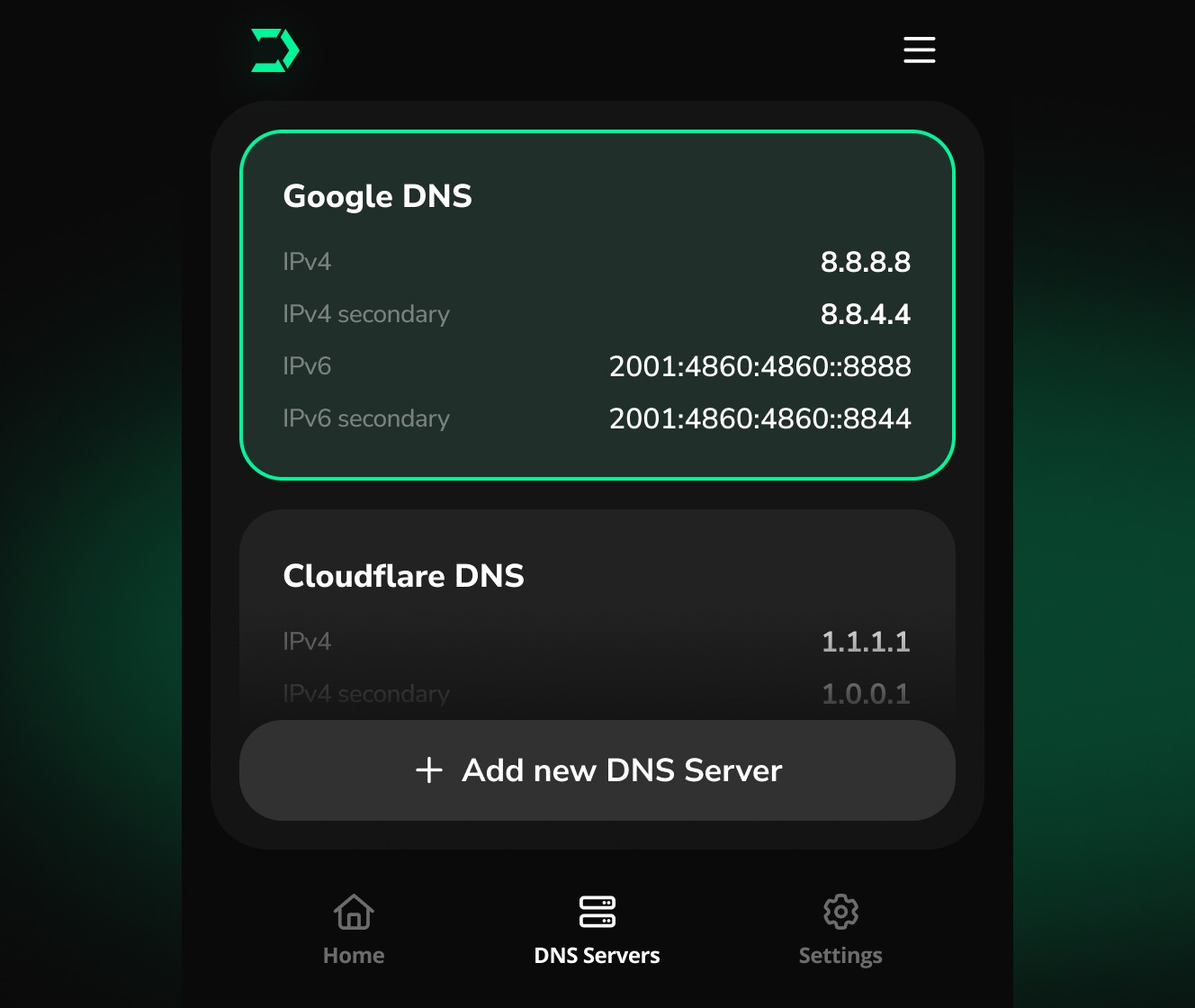
Want to use another provider? Open "DNS Servers" from the menu and select a different server or add your own custom DNS.

5. Having Connection Issues?
If you can't connect or experience an error, simply switch to another DNS server and try connecting again.

Custom DNS
Add your own DNS server in just a few steps. Configure custom DNS settings, save them to the app, and connect whenever you need.
1. Add a Custom DNS Server
Open the DNS Servers menu and tap "Add New DNS Server" to create your own custom DNS configuration.
2. Enter Your DNS Details
Enter the server name along with the IPv4 and IPv6 addresses, then tap "Save Server". Your custom DNS will appear in the DNS Servers list and will be ready to use.

3. Choose your Custom DNS
Find your new custom server in the DNS Servers list. Select it and go to "Home" from the menu.

4. Connect to Your Custom DNS
Once your Custom DNS Server is choosen you can tap "Connect now" to start using it.

Settings
Customize DNS Switcher to match your preferences. Manage notifications, choose your preferred DNS protocol, and change the app language at any time.
1. Open Settings
Tap the Settings tab from the bottom navigation to access the app preferences and configuration options.

2. Manage Notifications
Enable or disable Push Notifications to choose whether you'd like to receive updates and important information from the app.

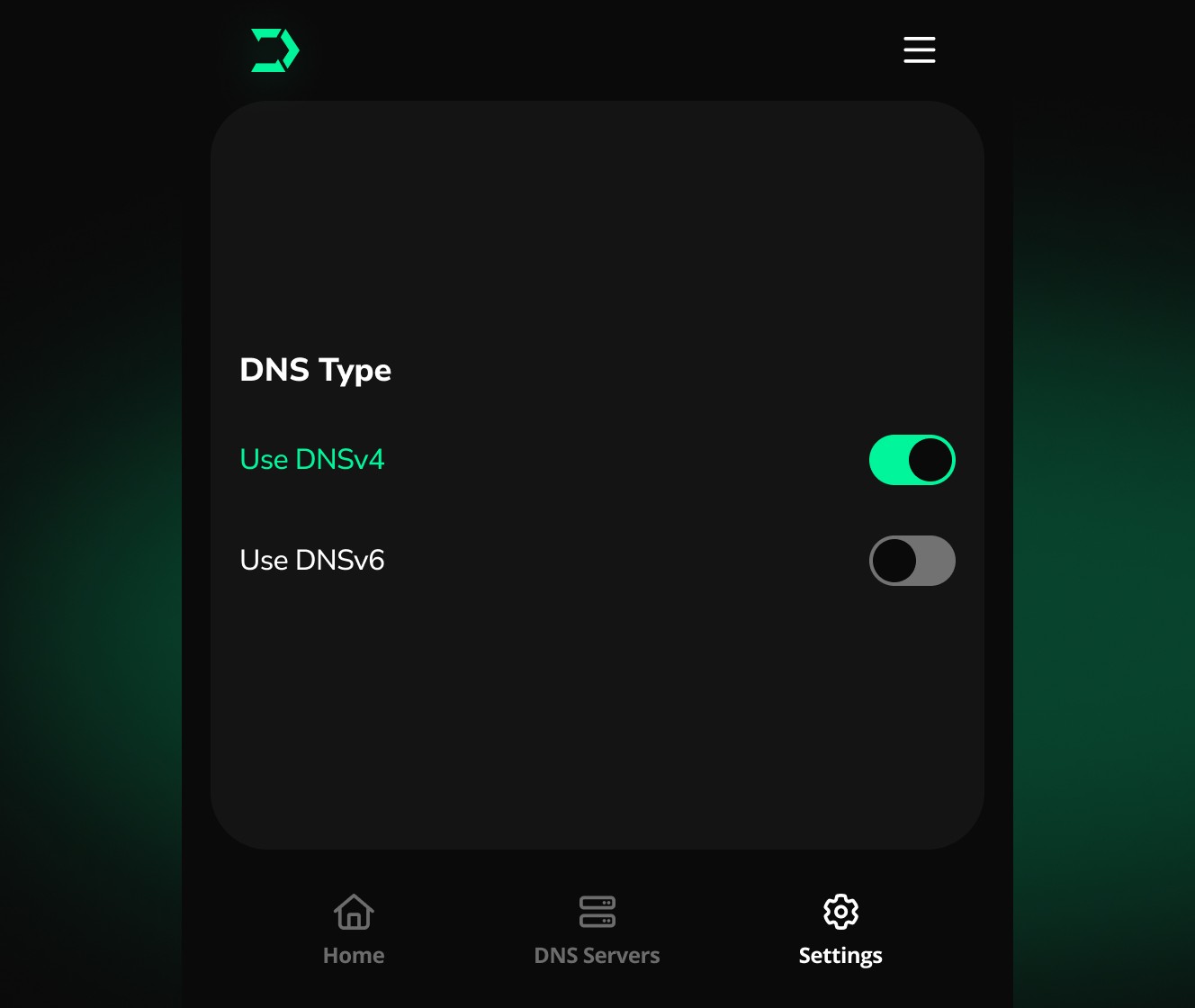
3. Choose Your DNS Type
Select DNSv4 or DNSv6 depending on your network or DNS provider requirements. You can switch between them at any time.
4. Change the App Language
Open the Language menu and choose your preferred language from the available options.

5. Your Settings Are Applied Instantly
All changes are saved automatically, so you can return to the app and continue using DNS Switcher without any additional steps.

Frequently Asked Questions
Find answers to the most common questions about DNS Switcher, including setup, custom DNS configuration, and how the app works.
Do I need any technical knowledge?
Can I use my own DNS server?
Is DNS Switcher free to use?
Ready to…
switch DNS?
